
If your shoulders creep toward your ears while you type, check the height of the work surface before replacing your chair. A desk that is too high can make even a supportive chair uncomfortable. Adjusting how the chair, keyboard and screen sit in relation to one another may help more than adding accessories.
Start with the chair and desk
Sit close enough to use the keyboard without reaching forward. Relax your shoulders and keep your elbows near your sides. Your forearms should be roughly level with the keyboard, so you are not holding your arms up or bending your wrists sharply as you work.
Set the chair height so your feet rest securely on the floor. If raising the seat helps your arms but leaves your feet dangling, try a stable footrest. A firm box can serve as a temporary test if it will not slide. Sit back against the chair rather than perching on its front edge. A small cushion or rolled towel can fill a gap at your lower back; take it away if it pushes you forward.
At a dining table, desk height may be fixed. Before buying furniture, try adjusting the chair, supporting your feet and pulling the keyboard closer. If others use the same space, make a note of the settings that work for you.
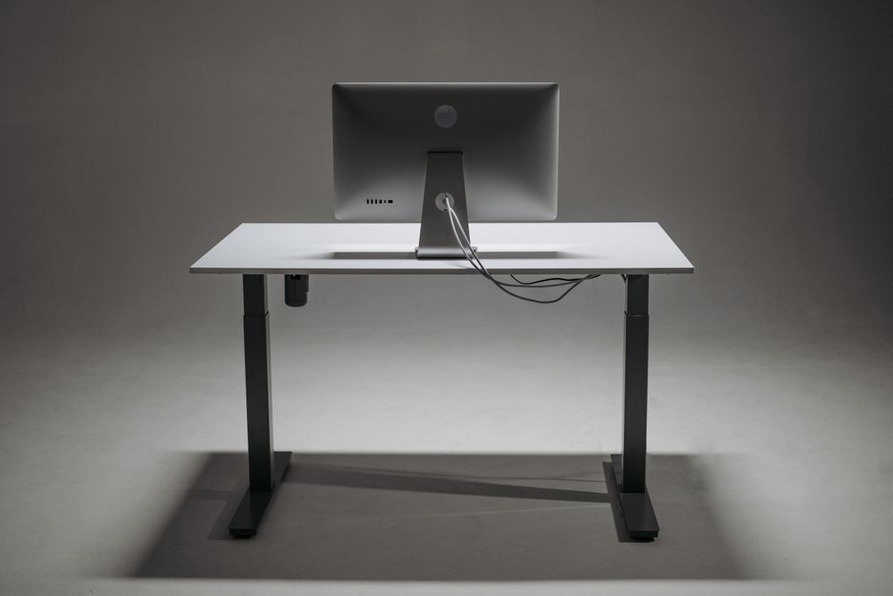
Give your eyes a more comfortable view
Position the screen so you can read it without leaning in or holding your head at an awkward angle. Increasing text size may help more than moving the monitor closer. Keep documents you consult often near the screen, rather than flat on the far side of the desk where each glance pulls your neck down.
A laptop creates a compromise: its screen and keyboard cannot be adjusted separately. For extended desk work, a separate keyboard and mouse let you raise the screen while keeping your hands at a comfortable height. Use a stable stand or solid books, and leave the laptop’s ventilation openings clear. If you wear multifocal glasses, a lower screen may suit your viewing angle better than a higher one. Adjust it so you do not have to tip your head back.
Control light rather than adding more of it
Glare can make even a bright room tiring to work in. Try positioning the screen with the window to one side, rather than directly behind it or in your line of sight. Curtains or blinds can soften changing daylight without darkening the room too much. If reflections remain, shift the monitor slightly before buying another lamp.
For papers or detailed work, aim a task light at the work surface, not into your eyes or across the screen. Your needs may change during the day: daylight might be enough for a morning call, while printed drawings need focused light in the evening. Match display brightness to the room and increase text contrast if small labels are hard to read.
Make the air and temperature easier to manage
The thermostat may show a comfortable temperature while a draft across your hands or face makes the desk unpleasant. Check nearby vents, fans and windows. Moving the chair or redirecting the airflow may help without changing the temperature for everyone else.
Fresh air can ease stuffiness, though an open window may also let in noise, outdoor pollution or heat. Ventilate when conditions allow, and keep heaters and vents clear. Persistent dampness, a musty smell or visible mold calls for investigation as a building issue, not a cover-up with fragrance. Strong scents can also bother others in a shared workspace.
Keep everyday items within easy reach
Clear enough space around the keyboard and mouse to move your hands and set down a document without balancing it on equipment. The desk does not need to be bare. Keep items you use several times a day, such as a notebook or pen, within reach; move occasional supplies farther away.
Keep cables out of the path of your feet and chair wheels. A clip or tie can hold a charging lead where you can reach it without leaving a loop across the floor. Do not bend cords tightly or trap them under furniture, and keep plugs accessible when they need to be disconnected. Put drinks on a stable surface away from power strips and papers.
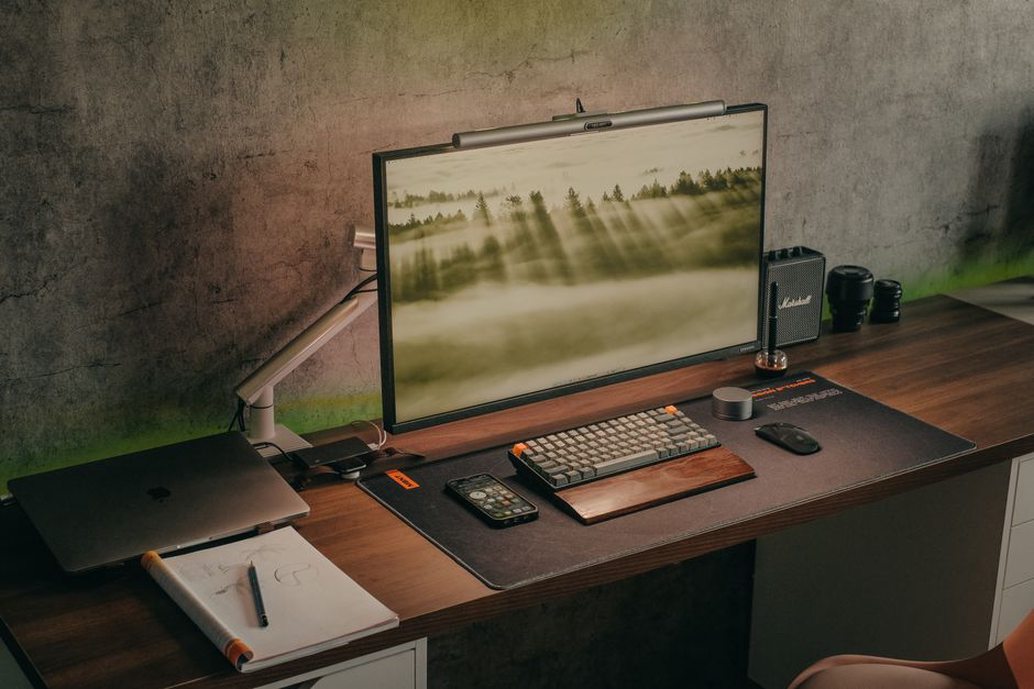
Adapt the space to the task
A setup that works for concentrated writing may be awkward for a video meeting or a review of large drawings. Put the camera near eye level for calls so you are not looking steeply down at a laptop. For paper-based work, leave room to spread out pages without twisting sideways to check each reference. If you often compare a document with the screen, place the paper beside the monitor and move it when you switch tasks.
Even a well-arranged desk does not make one sitting position comfortable indefinitely. Stand to collect a printout, shift position between tasks or take a brief break from the screen. If discomfort persists, worsens or includes numbness, ask a qualified health professional for advice rather than relying on desk equipment alone.
Reduce distractions you can actually control
Curtains or a rug may reduce echo, but they will not block every sound from the next room. A door that closes properly, a quieter spot for calls or headphones at a moderate volume may help more. In a shared home, agree on predictable times for calls and interruptions instead of relying on a sign others may miss.
Leave the workspace ready for the next day. A two-minute reset—putting papers in one tray, returning the keyboard to its usual position and clearing the mouse area—can keep a small desk usable. If you work at a shared table, keep daily supplies in a portable box so you can clear the space quickly.
To test one change now, sit with both feet supported and type a few sentences. If your shoulders rise or your wrists bend sharply, adjust the chair-to-keyboard height or bring the keyboard closer, then type again. Change one thing at a time; it will be easier to tell what helped.