
A phone left charging on a sunny dashboard may get hot enough to pause charging or dim its screen. Move it into the shade and let it cool before putting it back to work. Limiting heat exposure helps slow battery wear and reduces the chance of an interruption during calls, navigation or field documentation.
Keep the battery away from heat and unnecessary stress
Lithium-ion batteries lose capacity as they age. Heat speeds up that loss, especially when the battery is nearly full. Charging while recording a long video, running a demanding game or using navigation adds heat from both the charger and the processor. If the phone feels unusually hot, stop the demanding task, unplug it if appropriate and let it cool in a ventilated place. A refrigerator or freezer is no shortcut: rapid cooling can cause moisture to condense inside.
You do not need a rigid daily charge-percentage rule. Avoid frequent trips to zero and, when practical, avoid leaving the phone hot at 100% for long periods. An optimized-charging setting or charge limit can help if it fits your schedule, but charge fully when you need the runtime. An occasional full charge is fine; deliberately draining a modern phone to zero will not restore a worn battery.
Make charging routine rather than risky
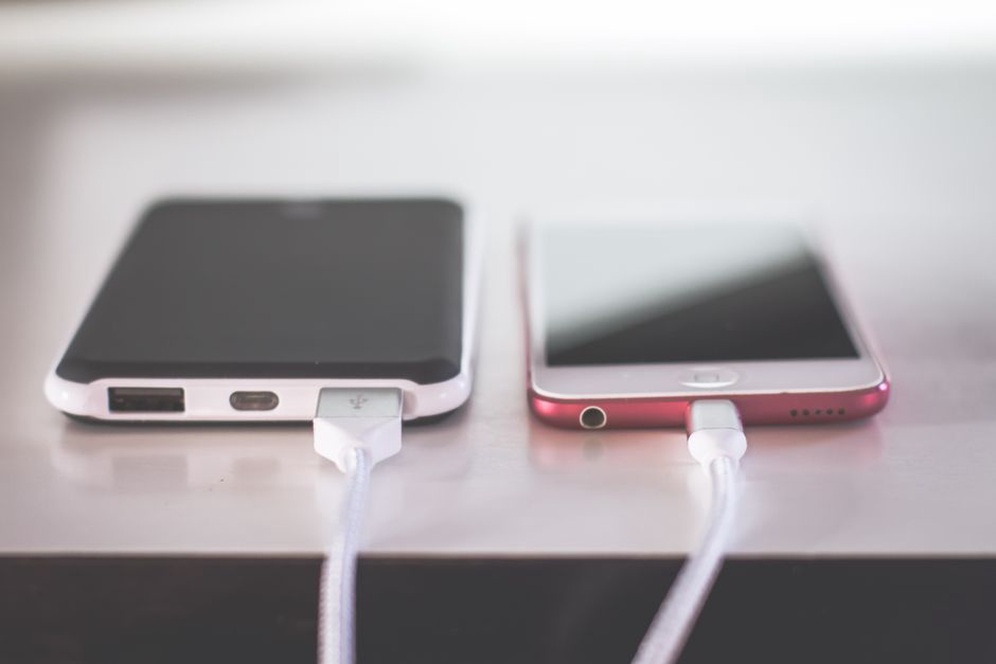
- Use a charger and cable that meet the phone maker’s specifications and are in good condition. A charger with a higher power rating does not necessarily push that power into the phone; compatible devices negotiate charging levels.
- Charge on a hard, uncovered surface, not beneath bedding or inside a tightly packed bag.
- Disconnect a cable with a damaged sheath, a loose connector or signs of overheating.
- If the charging port seems unreliable, inspect it in good light before trying the cable again. Do not probe it with metal tools or liquids.
Some phones slow charging when they get warm to protect themselves. If charging is repeatedly slow in one spot, check for direct sun or poor ventilation before blaming the charger. Wireless charging can generate noticeable heat too; if the phone regularly gets hot on a pad, adjust its placement or try a compatible wired setup.
Prevent damage before it becomes a repair
A case with a raised edge and a screen protector can limit damage from everyday drops and abrasion, though neither makes a phone impact-proof. Check the fit: a case that presses on buttons, traps grit against the body or interferes with charging can cause problems of its own. Clean dust from the case occasionally, particularly after work around soil, aggregate or other fine particles.
Water resistance is not permanent waterproofing. Seals may degrade with age or after a drop or repair, and published ratings apply to particular test conditions. Keep the phone away from pressure washing, salt water and prolonged rain, even if its specifications mention water resistance. If it gets wet, turn it off when practical, remove the case and follow the maker’s drying guidance. Do not connect a cable while the charging port is wet, or use heat or compressed air to dry it.
Keep grit away from the screen and openings as well. Use a separate sleeve or compartment instead of sharing a pocket with keys, fasteners or loose site materials. Wipe the screen with a clean microfiber cloth so particles are not dragged across it. If moisture is needed, apply a suitable cleaner lightly to the cloth, not into the phone’s openings, and check the maker’s instructions for approved products.
Watch for early signs of physical failure
A swelling battery may lift the screen or rear panel. If the device is distorted, unusually hot or giving off an unusual odor, stop using and charging it and seek qualified repair advice. Do not press the panel back into place or puncture the battery. A cracked screen or loose port may be less urgent, but addressing it early can prevent further damage from moisture or repeated cable movement.
Maintain the software you rely on
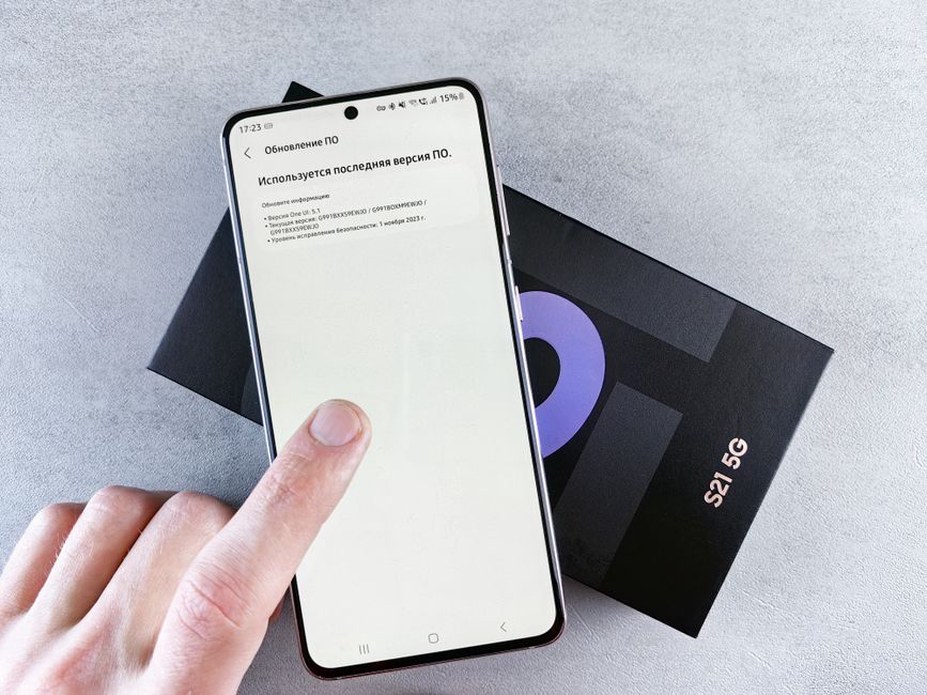
Install operating-system and security updates while the phone remains supported. They can fix vulnerabilities and software faults, but they cannot reverse physical battery aging. Back up the phone before a major update and leave enough free storage for installation and everyday use. A nearly full device may struggle to save photos, download updates or manage temporary files.
Check apps that run in the background, request constant location access or send excessive notifications. Battery-use information in the phone’s settings may show an app whose activity has changed. Check its settings or update it before concluding that the battery needs replacing. Be wary of unverified “cleaner” apps promising dramatic gains in speed or battery life; they may add background activity or request unnecessary permissions.
A restart can clear a temporary software problem; regular forced shutdowns are not required maintenance. If the phone remains slow, check free storage, recent app changes and any battery-health information the device provides. Those details are more useful to a repairer than simply reporting that the phone feels slow.
Protect useful life with backups and repair decisions
A damaged phone may still turn on even when its data is hard to recover. Set up automatic backups for photos, contacts and files you cannot easily replace, then check occasionally that they have completed. Work records may need to go into an approved system rather than a personal cloud account. Keep account recovery details current and use a screen lock to protect data if the phone is lost.
Battery wear is often what makes an otherwise functional phone feel unusable. If battery-health information shows substantial deterioration, or the phone shuts down unexpectedly despite an adequate charge, replacing the battery may make more sense than replacing the device. Weigh the repair cost and parts availability against the remaining software-support period. Choose a repair provider equipped to handle that model and its battery safely; poor parts or installation can introduce new faults.
Before taking a phone outdoors for work, check that the case is seated, the charging port is dry and clear, any essential files are available offline, and the previous day’s backup has finished. If the cable connects only at a particular angle, replace or test the cable first. Repeatedly forcing the plug risks damaging the port.