
A dining table can handle an hour of laptop work. Add drawings, spreadsheets, and a video call, though, and the setup may start to get in the way. Before buying anything, note when discomfort or interruptions occur: neck strain while reading a second screen, afternoon glare, or a chair that will not fit under the table. Those observations are more useful than a picture of an ideal desk.
For engineers and other technical professionals working from home, comfort can affect how readily you check details. An awkward view of a drawing, repeated switching between documents on a small display, or persistent background noise can make sustained review harder. The workspace need not look like an office; it needs to suit the work, the room, and the person using it.
Start with the work you actually do
List the tasks that take up most of your week before choosing a location. Reading reports and attending calls call for a different arrangement from marking up large drawings or assembling field notes. Decide what needs to stay within reach, what can be stored, and how often you need a clear surface for paper.
- Screen-intensive work: leave enough desk depth to place a monitor at a comfortable viewing distance without crowding the keyboard.
- Paper review: keep a clear area beside the keyboard so documents do not cover your input devices.
- Calls: check background noise, microphone quality, and whether confidential material is visible behind you.
- Occasional work: choose a setup you can assemble and put away without readjusting everything each time.
If you work with drawings or geotechnical logs, test the space with a representative document rather than an empty desk. Open the files you normally use, set down any paper references, and try moving between them without twisting or stacking items over the keyboard. You may find that desk area, display size, or storage is the real constraint.
Choose a location for its conditions, not its appearance
A separate room gives you more control over noise and interruptions, but a quiet corner can work well. Compare possible locations during your usual working hours. A window that gives pleasant morning light may cause afternoon glare; a room that is quiet at midday may be noisy when others return home.
Look for a stable surface, a safe route to power, reasonable ventilation, and room to get in and out of the chair. Keep cables out of walkways, and avoid a spot where an opening door will strike the chair. If you share the space, agree when calls require quiet, where equipment can remain, and when the surface needs to serve another purpose.
Check the temperature at the seat, not just elsewhere in the room. A radiator or draft can make an otherwise suitable location uncomfortable. Try working there for a normal period before committing to furniture. In a small home, a compact workstation that remains usable may be better than a larger desk that blocks circulation.
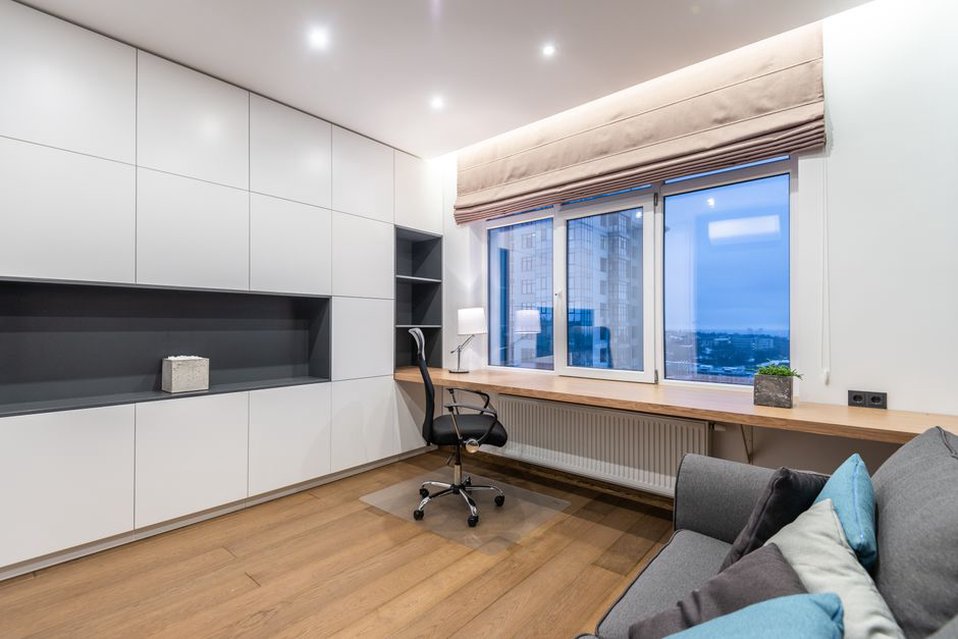
Fit the chair, desk, and screen together
There is no single desk height or posture that suits everyone. Start with the chair: sit back with your feet supported, your thighs comfortable, and your shoulders relaxed. Adjust the seat height if you can. If your feet no longer reach the floor when your hands are at a comfortable typing height, try a stable footrest. A small cushion may help with back support, provided it does not push you too far forward.
Move the keyboard and mouse close enough that you are not reaching with straight arms. Keep your wrists relatively neutral rather than bending them sharply against the desk edge. Armrests help only if they support your arms without lifting your shoulders or keeping you too far from the desk.
Put the main screen directly in front of you. Viewing distance depends on screen size, text size, and eyesight; ordinary working material should be readable without leaning forward. Set the display so you are not holding your neck noticeably up or down. For long laptop sessions, an external keyboard and mouse let you raise the screen independently. Use a stable stand rather than a precarious pile of books.
With two monitors, place the one you use most in front of you and the other beside it. If you use both equally, keep them close together and face the point where they meet. When reviewing a drawing, try increasing the application zoom instead of leaning toward the screen, but check that enlargement does not hide information needed for comparison.
Test the setup under real workload
After an hour of ordinary work, notice whether you have edged toward the screen, raised one shoulder to use the mouse, or repeatedly turned to read a document. Change one thing at a time—screen position, chair height, or document location—so you can tell what helped. If pain or numbness persists, or symptoms worsen, seek advice from a qualified health professional rather than continuing to improvise adjustments.
Control light and screen glare
Lighting should let you read paper and screens without a stark contrast between them. Daylight can be useful, but a window to the side of the screen usually creates fewer problems than one directly behind it or in your line of sight. Curtains or blinds can soften changes during the day. At night, use room lighting and, where needed, a task light instead of working by a bright screen in an otherwise dark room.
For paper drawings or handwritten notes, aim the task light at the page without reflecting it into your eyes or screen. Adjust brightness as conditions change. If the display remains hard to read, clean it and check text size and contrast before buying a brighter lamp. Glossy paper and screens reflect light differently, so test both during a real review task.
Plan for noise, calls, and concentration
Predictability matters as much as volume. A steady background sound may be easier to work around than intermittent conversation beside the desk. Close a door when possible, schedule call-heavy work away from the noisiest period, or use a headset that makes speech clear at a moderate volume. Soft furnishings may reduce room echo, but they will not reliably block sound through walls.
Test your microphone from your normal seated position. A headset may make your voice clearer without making you speak louder. Keep the camera background simple, and remove documents that should not be visible. If you handle sensitive project information, follow your employer's rules for device security, storage, and calls; a visually private corner does not replace those controls.
Set expectations about interruptions, too. A closed door, shared calendar, or agreed signal for calls can show when you are unavailable. Allow time for household questions rather than expecting a sign to prevent every interruption.
Keep equipment and cables manageable
Keep frequently used items within reach without stretching across the desk. Store less-used reference material nearby, off the active work surface. A tray for notes and a regular place for the headset can keep them from spreading into the keyboard area.
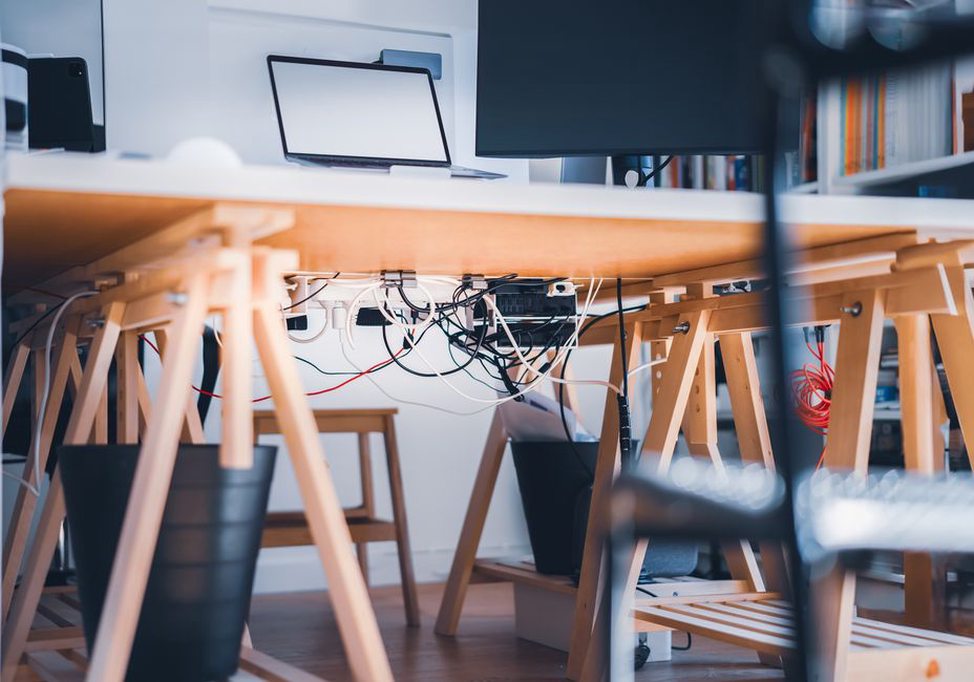
Leave power supplies ventilated and keep cables away from footpaths and chair wheels. Do not overload outlets; use electrical accessories suited to the equipment and local requirements. Stop using an outlet that is damaged, loose, or warm in use, and seek appropriate electrical advice. If you have a sit-stand desk, check cable slack in both positions. A cable that looks tidy while seated may pull tight when the desk rises.
Test the connection from the intended desk location if calls or shared drawing sessions are part of your work. If wireless reception is inconsistent, moving the workstation or discussing approved connection options with your organization's IT team may help more than buying accessories at random.
Build movement into the working arrangement
Even a well-fitted workstation will not make one position comfortable indefinitely. Keeping water or a commonly used reference a short walk from the desk can give you a reason to get up. Between focused tasks, stand, walk briefly, or change position. The aim is to break up sustained loading, not to hold a supposedly perfect posture.
A sit-stand desk offers another working position, but not every home workspace needs one. If you use one, arrange both seated and standing positions so the screen and input devices remain comfortable. Standing still for long periods can be tiring, too. Switch positions to suit the task and how you feel, rather than treating standing as an endurance target.
Make improvements in a sensible order
Begin with low-cost changes: clear the work surface, move the desk out of glare, adjust the chair, and reposition the screen. Then identify what still gets in the way. A monitor riser will not steady an unstable chair, and more storage will not improve call audio. Buy equipment only when you know which problem it needs to solve.
- Use the proposed setup for a few typical sessions and note specific discomforts or disruptions.
- Adjust one feature at a time, then check it against the task that caused trouble.
- Give priority to equipment you use for long periods, such as the chair, main display, keyboard, and lighting.
- Recheck the arrangement when your tasks, shared-room needs, or daylight conditions change.
If your dining-table setup must be cleared each evening, keep the laptop stand, keyboard, mouse, and charging lead in one container. Note the chair and screen positions that worked, so the next morning does not start with the same adjustments. Before putting everything away, unplug the cable and keep it clear of the table edge.