
Put the call window near your camera rather than at the far edge of a wide monitor. When you look at a colleague’s face, your gaze will stay closer to the lens, and you will spend less time turning your neck between speakers. It is a small adjustment that can make a difference during long design reviews and remote inspections of transport infrastructure.
Comfort on a video call involves more than the chair. Poor audio makes technical terms hard to follow; an unreadable drawing pulls people toward the screen; an open-ended agenda keeps them watching after their input is needed. Tackle each source of strain separately: set up the workspace, make speech and shared material easy to follow, and give people sensible ways to step away from the camera.
Start with a screen position you can sustain
Place the screen so its most-used area is comfortable to view with your head in a neutral position. If a laptop sits low on the desk, raise it on a stable stand or a firm stack. Use a separate keyboard and mouse if the raised laptop would put your hands too high. Keep your feet supported and shoulders relaxed; a higher screen is no help if you must reach for the controls.
Distance matters too. Sit far enough back to see the meeting window without repeatedly leaning in, then enlarge text in the meeting application or shared document as needed. Keep the active speaker or shared content near the center of the display. On a large monitor, a full-screen call can scatter faces, controls, and drawings so widely that following the discussion takes constant eye and head movement.
With two monitors, put the camera above or near the one showing the meeting. Keep reference documents on the other, but bring a document beside the call when you need to discuss it directly. That way, colleagues do not spend an entire decision about a drawing or test result looking at your profile. It is fine to look away to check information; briefly say what you are doing instead of trying to hold an artificial camera gaze.
Reduce glare before changing equipment
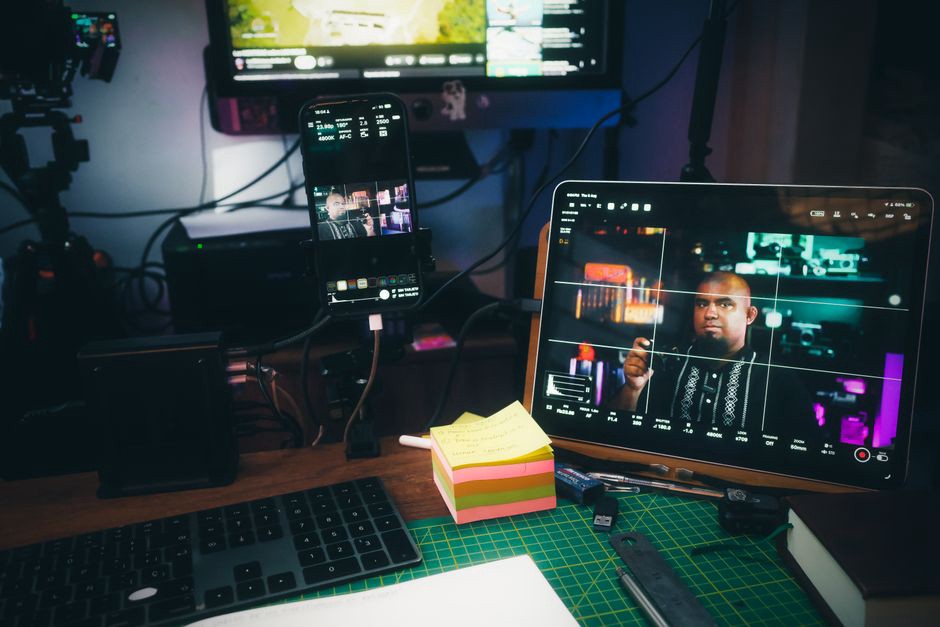
Bright light behind you makes your face harder for others to see. Glare on your screen makes drawings and captions tiring to read. Try turning the desk perpendicular to a window, adjusting the blinds, or moving a lamp so it lights your face without shining into the display. Soft, even light is generally more useful than a bright lamp aimed at your eyes.
Check the camera preview, then look at the screen from your usual seated position. Those are different tests: you may look clear to colleagues while squinting at reflections yourself. If daylight changes during a long meeting, keeping the blinds within reach is more practical than trying to find one setting that works all day.
Make audio the first technical priority
A discussion can often continue with a poor camera image. It is much harder to continue when words drop out, echo, or disappear under background noise. On an engineering call, a missed unit, location, or condition can change the meaning of a statement. Before the meeting, make a short test recording or call. Speak at your normal volume and listen for clipping, echo, fan noise, and uneven levels.
A headset can help in a noisy room, but it need not be elaborate. Choose one you can wear comfortably for the expected meeting length. Position the microphone so it does not rub against clothing or sit directly in your breath. If you use speakers, keep the microphone away from them and check that the meeting software suppresses echo effectively. Audio from two nearby devices often causes feedback; mute or disconnect one before the call.
Use mute to cut predictable background noise, not to withdraw from the discussion. If your connection is unstable, switching off outgoing video may help, depending on the platform and network. Tell the group when you move to audio-only so they do not mistake the missing image for a dropped connection.
Give difficult terms a second channel
Speech alone is a poor way to convey an unfamiliar station reference, borehole identifier, chainage, revision code, or material designation. Put critical terms in chat or on the shared document as they come up. When a decision depends on a number, repeat it with its unit and identify the drawing or data source. Captions can help participants who need them, but automated transcription may mishear technical vocabulary. Check important terms rather than treating the captions as the record.
Agree on a simple interruption signal, such as a raised hand or a short message in chat. Someone who missed a term can then stop the discussion before the group builds on a mistaken assumption.
Share drawings so people can actually read them
Sharing an entire drawing sheet is rarely useful if the detail under discussion is too small to identify. Before the call, open the relevant file, find the needed view, and check how it looks at the size others are likely to see. Zoom in on the area being discussed while keeping enough context to orient the group. State the sheet, revision, and location aloud, and move the pointer slowly enough for people to follow.
Do not assume everyone has a large monitor. A colleague may be on a laptop, using a split-screen view, or joining by phone away from the project office. If a figure has dense labels, send the approved file through the team’s usual document channel before the meeting, when permissions allow. Participants can inspect it locally while listening. A screenshot may help with orientation, but it should not replace a controlled drawing or formal record.
For spreadsheets, increase the zoom and hide irrelevant columns instead of scrolling rapidly across the workbook. For site photographs, identify the viewpoint and date, and make clear whether an annotation records an observation or an interpretation. These details matter especially when someone cannot see the presenter’s screen clearly.
Use camera expectations that fit the work
Seeing faces can help a group set priorities, resolve disagreement, or welcome someone new to a project. Continuous video is less useful when everyone is reading a report or examining a drawing. Set expectations at the start: cameras might be helpful for introductions, for example, but optional during individual review. Participants may also need video off because of bandwidth, accessibility, privacy, or conditions at a temporary work location.
Self-view is optional too. It can help you check framing at the start, then become a distraction. If the platform allows it, hide your preview once you know you are visible. Your camera stays on; only the moving image on your own screen disappears.
Check what appears behind you. A neutral wall may work better than a virtual background that blurs the edge of a drawing held up to the camera. More importantly, look for project records, personal information, or live site imagery that the group should not see. Use the organization’s approved meeting and file-sharing arrangements for restricted material.
Reduce the load of long meetings
No desk setup can make an unnecessarily long call comfortable. Organize the agenda around decisions or topics, identify who needs to contribute to each, and make review material available beforehand. If an issue needs detailed mark-up, do that work outside the call and use meeting time for unresolved points. Nobody benefits from watching a presenter search for a file.
For a longer meeting, plan a short pause at a natural transition rather than waiting until people are visibly tired. Step away from the display, change position, and attend to basic needs. During discussion, you can also glance across the room to break up the time spent looking at a fixed distance, as long as you can follow what is being said. Attention does not require staying motionless in the camera frame.
Online turn-taking can be awkward: speech is delayed, and visual cues are limited. A facilitator can name the person invited to respond, leave a short gap after a question, and clarify whether the group is being asked for input or making a decision. In larger meetings, collecting comments in chat before calling on speakers keeps the fastest connection or loudest voice from setting the pace. It also cuts down on interruptions and the effort of finding a moment to speak.
Keep a usable record without recording everything
Concise written notes spare participants from trying to remember every detail. Record decisions, unresolved questions, responsible people, and the version of each document discussed. If anyone proposes recording or transcription, follow the organization’s consent, retention, and information-security rules. A recording creates a different kind of project record; it is not simply a substitute for minutes.
At the end of a technical discussion, restate actions that depend on a particular assumption. “Check the drainage detail against the latest survey” is different from “revise the drainage detail.” That distinction is easy to lose when people are tired or working from different revisions.
Adapt the setup for calls from site or a temporary office
Calls around transport assets seldom happen under ideal desk conditions. A site cabin may be noisy, a temporary office poorly lit, and an outdoor connection unstable. Before joining, find a safe, permitted place where you can hear clearly without obstructing operations. Do not walk through an active work area while inspecting a shared screen or typing a response.
With an unreliable connection, decide what can safely be conveyed by audio and what needs later review of the source files. Do not use a compressed video feed to judge a fine crack, small displacement, surface condition, or measurement marking. State the limitation during the call and arrange access to the original image, inspection record, or measurement through the approved workflow. If the issue is time-sensitive, use the project’s established escalation route rather than relying on an ambiguous screenshot.
Headphones can keep a call from being broadcast through a shared space, but they do not make the space private. Check who can hear you and who can see your screen. If confidentiality cannot be maintained, move somewhere suitable or postpone that part of the conversation.
Make small adjustments based on the problem you notice
Different calls put different demands on the setup. A bridge-drawing review needs more screen space than a brief coordination check-in. Someone with hearing difficulties may gain more from captions and orderly turn-taking than from better lighting. Change one troublesome condition at a time and see whether it helps:
- If you lean forward to read: enlarge the shared material, bring the relevant window closer to the center of the screen, or request the source file.
- If you miss words: test a headset or microphone, reduce competing noise, and ask for critical terms in writing.
- If your neck feels strained: adjust the screen and keep the main call window near the camera instead of off to one side.
- If you feel obliged to watch yourself: check your framing once, then hide self-view if the platform supports it.
- If discussion drifts: return to the decision at hand and note questions that need separate document review.
Before the next drawing review, open the correct revision, set the first discussion area to a readable zoom, and place the meeting window beside it. That quick check gives everyone a better starting point than searching for the right sheet while the call is already underway.