
A password reused on an unrelated service can give an attacker access to a project mailbox after that service is breached. The mailbox may hold inspection reports, tender correspondence, and password-reset messages for other systems. Start with a different password for each important account, especially email and accounts used to approve, share, or change engineering records.
In transport-infrastructure work, account security affects more than confidentiality. Engineers and operations staff use document repositories, monitoring dashboards, procurement portals, meeting tools, and field-data applications. Someone with a compromised login may be able to alter a file, impersonate a colleague, or interrupt access during an incident. Individual habits help, even when security policy is set by the organization.
Start with the accounts that can unlock others
Before changing settings, list the accounts that matter: primary work email, any personal email used for recovery, your password manager, device account, and administrator or project-platform logins. Note which accounts can reset access to others. Email often sits near the top of that chain because password-reset messages and security alerts arrive there.
Check policy before changing recovery settings or authentication methods on an organization-managed account. An infrastructure operator may require approved devices, centrally managed multifactor authentication, or a particular reporting procedure. Give personal accounts used for recovery the same attention, but keep work credentials and project records in approved systems.
- Protect first: email, password manager, device account, and accounts with administrative privileges.
- Protect next: document repositories, monitoring platforms, procurement systems, and collaboration tools.
- Do not overlook: older accounts that still hold files, retain payment details, or can access a shared workspace.
When a service is no longer needed, follow its retention and access procedures rather than leaving the login untouched. Project documentation may be subject to contractual or regulatory retention requirements; deleting an account or its contents may not be an individual decision.
Use a different strong password for every account
The most important rule is not to reuse passwords. Attackers can test username-and-password combinations exposed in one breach against other sign-in pages, a practice known as credential stuffing. A unique password limits what one breached service can expose.
A reputable password manager can generate and store long, random passwords. For an account whose password you must type manually, a long, unique passphrase may be easier to use than a short string of substitutions. Avoid project names, organization names, dates, and familiar phrases that someone could guess. Follow your employer’s policy for password managers; do not put work credentials in an unapproved personal vault.
Give the manager a strong, unique master password and enable its available multifactor authentication. Store recovery information as the provider and your organization instruct. Losing access to a vault that holds the only copy of a critical credential can cause an operational problem.
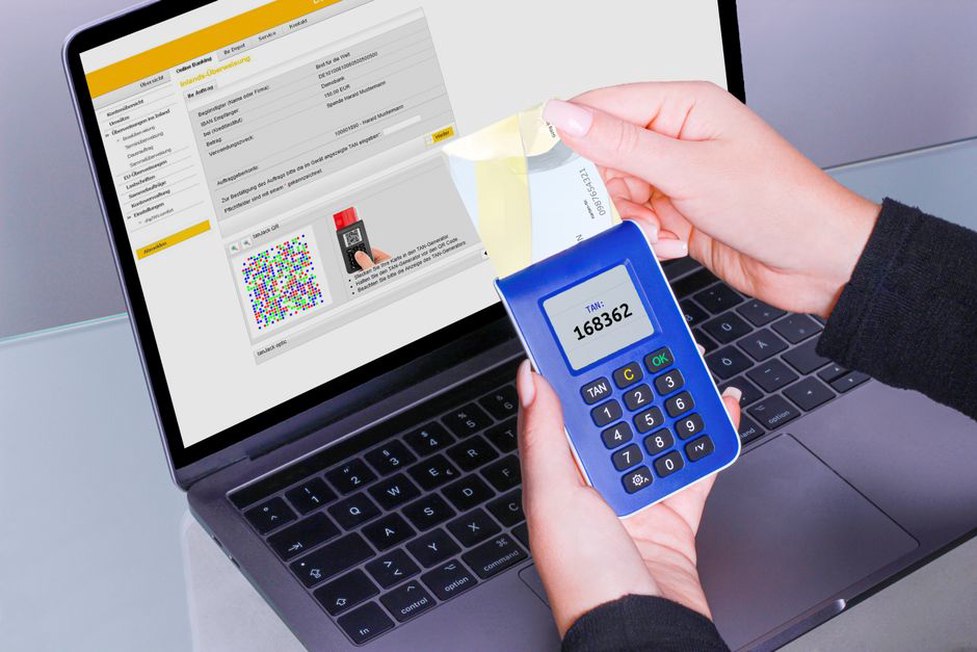
Change passwords when there is a reason
Change a password promptly if you reused it, entered it on a suspicious page, shared it improperly, or learned that it was exposed in a breach. Change it when directed by your organization’s incident-response team, too. Frequent changes to otherwise sound, unique passwords can encourage predictable variations without addressing the main risk. If a compromised password appeared on other accounts, replace it on those accounts as well.
Add multifactor authentication where available
Multifactor authentication (MFA) requires another form of verification alongside a password. It makes a stolen password less useful, though it cannot prevent every account takeover. Enable it first on email, your password manager, and privileged work accounts, then on other services that support it.
Methods differ. A security key or device-bound passkey can resist many phishing attempts because authentication is linked to the legitimate service. Authenticator-app codes are generally preferable to relying only on text messages when stronger options are available. Text-message codes still create a barrier to password-only attacks, but phone-number takeover and message interception remain risks. Use a method your organization permits and the account supports.
Do not approve an unexpected sign-in prompt to stop repeated notifications. An attacker may send prompt after prompt, hoping for an accidental approval. If you are not signing in, deny the request and report it through the approved channel. Treat one-time codes as sensitive: a caller or message asking you to read one aloud is not completing a legitimate sign-in for you.
Keep a safe way back into the account
If a service provides backup codes, keep them protected and separate from the device you use for everyday sign-in. Check that recovery email addresses and phone numbers are current, and remove options you no longer control. Recovery for a work account may be managed by the service desk; do not add a personal address or device unless policy allows it.
Check recovery before replacing a phone. Before wiping the old device, confirm that the new one can complete a sign-in and that required authenticator accounts or passkeys have been transferred through the approved process. Entering the password successfully does not establish that the second step will work later.
Pause before entering credentials from a message
A phishing message may ask you to review a revised drawing, open a shared inspection report, resolve a mailbox warning, or confirm access to a project portal. The document may look convincing while the sign-in page is false. The message could even come from a colleague’s compromised account, so a familiar sender name is not proof.
Instead of using a sign-in link in an unexpected message, open the service through a saved bookmark, your organization’s approved application launcher, or an address you already know. Inspect the site address before entering credentials; a padlock alone does not establish that the page belongs to the intended organization. Verify an unusual request from a colleague through a separate channel, such as a known phone number or an existing conversation.
- Question urgency outside your normal workflow, especially a warning that access will be disabled immediately.
- Do not assume a file-sharing invitation is safe because it names a current project.
- Be wary of forms reached from a message that ask for a password, MFA code, or recovery code.
- Report suspicious messages through the organization’s process instead of forwarding their links widely.
A password manager offers another clue: it may not fill credentials on an imitation site because the address does not match the saved account. Stop and inspect the page rather than copying the password into it manually.

Keep devices and sessions under control
Good account settings offer limited protection if the device used to sign in is left exposed. Install operating-system and browser updates, use a screen lock, and do not leave an authenticated device unattended in a site office, shared vehicle depot, or meeting room. On organization-managed equipment, let required security tools and updates run. Report problems rather than disabling protections to keep an application working.
Use the approved method to access work systems from field locations. A shared computer or borrowed device may retain drawings, browser sessions, or saved credentials after you leave. If an approved procedure requires you to use one, do not save passwords, sign out fully, and check whether downloads or local copies need removing. Closing a tab does not always end a session.
Review the device and active-session lists in important account settings from time to time. If you see a device you no longer use or do not recognize, sign it out and investigate under your organization’s procedure. Check connected applications, too: a third-party tool may retain access to email or files after its original task is finished. Revoke permissions you no longer need, subject to work-system change controls.
Separate individual habits from team responsibilities
A stronger personal password cannot resolve every access problem. Shared logins make it difficult to establish who changed a monitoring threshold, issued a drawing, or downloaded a report. Where a platform supports individual accounts and role-based permissions, teams should use them instead of circulating one credential. Access should match a person’s duties and be reviewed when they change roles or leave a project.
Access control also matters for the traceability of engineering records. A repository should let a team distinguish approved revisions from drafts and identify who performed an action. If a project relies on a shared credential, do not quietly substitute an improvised workaround. Raise the issue with the system owner so migration, continuity, and audit requirements can be considered together.
Likewise, one employee’s private email address should not be the only recovery route for a team-owned service. Document ownership, backup administrators, and recovery procedures in approved organizational systems.
Know what to do after a suspected compromise
If you enter a password on a false page or receive an alert about an unfamiliar sign-in, act promptly. For an employer-owned account, report the event immediately through the established security or service-desk channel. Give the approximate time, the account involved, what happened, and whether you entered a password or approved an MFA prompt. You do not need proof that someone gained access before reporting it.
Using a device you trust and following incident-response instructions, change the affected password and revoke active sessions where possible. Check recovery details and newly connected applications for unauthorized changes. Replace the password on every other account where it was used. Preserve suspicious messages or alerts as your organization requests; deleting them may remove evidence needed for the investigation.
If the account can access infrastructure monitoring, field observations, or controlled project documents, notify the relevant system owner through the approved process. The response may need to examine recent file changes, exports, permission changes, and operational actions as well as login history. Avoid undocumented changes to a live system while the incident team assesses it.
Make the next check small and specific
Start with one account: open your primary email settings through the usual sign-in route. Confirm that MFA is enabled, recovery methods are still under your control, and no unfamiliar devices or sessions appear. If the account is organization-managed, record any discrepancy and contact the approved support channel rather than changing a policy-controlled setting yourself.