
A chair can feel fine during a short meeting and become uncomfortable halfway through a two-hour drawing review. Before replacing it, check three things: are your feet supported, can your forearms rest without lifting your shoulders, and can you look at the screen without bending your neck downward? Change one setting at a time, then judge it during your usual work rather than from a brief sit-down.
For engineers working from home, the task matters as much as the furniture. Reading plans, writing reports, joining calls and comparing inspection photographs each use the desk differently. There is no single posture to hold all day; the workspace should support the task at hand and let you change position easily.
Start with the contact points
If the chair is adjustable, set it so your feet are supported and the front edge of the seat does not press hard against your thighs. A stable footrest may help if the desk requires you to sit higher. The backrest should support you while you reach the keyboard comfortably. If you add a cushion, make sure it does not push you too far forward to use the backrest.
Bring the keyboard and mouse close enough to keep your elbows near your body. Avoid pressing your wrists against a sharp desk edge while typing. If mouse movement feels cramped, more clear surface area may help more than a specialty device. Keep everyday items within reach; occasional references can sit farther away, giving you a reason to get up.
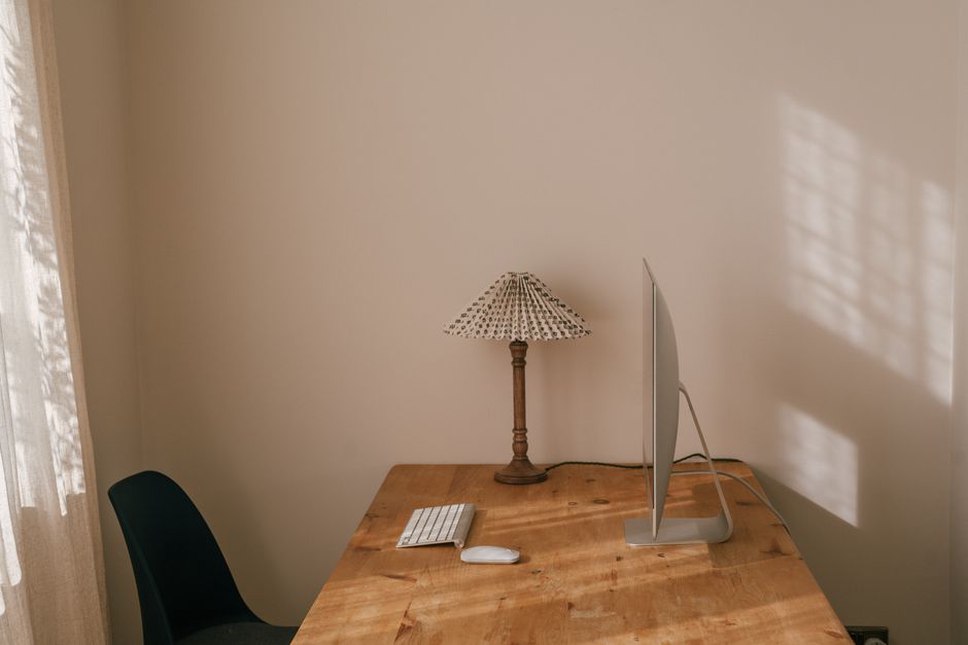
Match the screen to the work
When a laptop keyboard is at a comfortable typing height, its screen is often low. For longer desk sessions, a stable stand or platform, plus a separate keyboard and mouse, can resolve that trade-off. Keep ventilation openings clear and make sure the laptop cannot slide off its support.
Put your primary screen roughly in front of you so you are not turning your head for long stretches. Use legibility to set the distance: you should be able to read text without leaning in and see small details comfortably. Increasing document zoom or interface text size is often better than pulling the screen closer. When comparing a drawing with a report, keep whichever you consult most directly ahead; swap them when the task changes.
Reduce glare before increasing brightness
Reflections can make a screen tiring to read even in a well-lit room. Where possible, position it with a window to the side, rather than directly behind the display or in your line of sight. Try blinds, a different screen angle or a small desk adjustment before raising brightness to compensate. A task light can illuminate paper drawings without lighting up the display, as long as it does not reflect in the screen or shine into your eyes.
Make temperature and air movement predictable
A cold draft around your ankles or afternoon sun on the desk can make a workspace uncomfortable even when the thermostat reading seems normal. Notice when the problem occurs before changing the setting for the whole room. Closing a drafty gap, moving the desk out of direct sun or adjusting a blind may address the local cause. Leave heating and ventilation outlets clear, and keep loose papers out of persistent airflow.
Stale air, strong cleaning fragrances and dust can also make it harder to concentrate. Ventilation needs to suit the building and outdoor conditions; opening a window may be a poor choice near traffic, smoke or extreme temperatures. If discomfort continues after ordinary desk adjustments, look at the room conditions too.
Control noise without losing important cues
A rug or curtain can soften the sound in a sparse room, though neither will block a loud neighbour. Move noisy equipment away from the microphone for calls, and check whether a fan or laptop stand is sending vibrations through the desk. Headphones may make speech clearer, but keep the volume no higher than needed and take breaks from wearing them.
In technical discussions, intelligible speech matters more than studio-quality audio. A short test recording may reveal keyboard noise or echo that is easy to miss during a live meeting. Whatever you use to control noise, make sure alarms, the doorbell and other essential household signals remain audible.
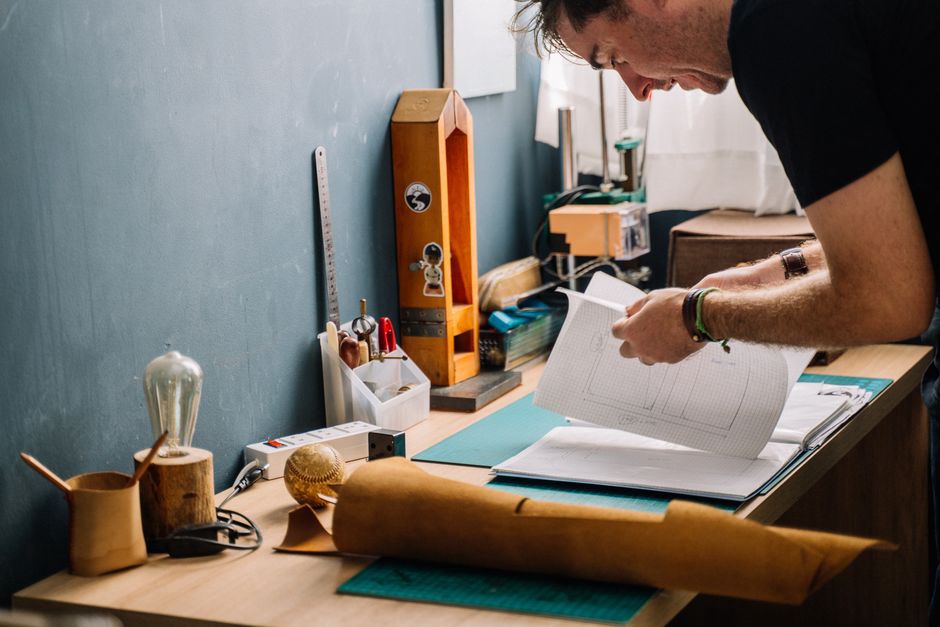
Keep the working surface usable
Sometimes the problem is the workflow rather than the chair. Cables and reference sheets spread across a desk can force you to hold a drawing awkwardly or keep shifting the mouse. Clear space for the active task, then decide where the supporting items belong:
- Working documents: put the current drawing or notebook where you can read it without twisting for long periods.
- Cables: keep them clear of your feet and chair, without pinching them under furniture or covering power adapters.
- Drinks: keep them within reach but away from electronics and irreplaceable paper records.
- Reference material: move inactive files off the main surface so you have room to switch between keyboard and paper work.
If you spend long periods reviewing printed material, a document holder can reduce repeated downward looking. It only needs to be stable and large enough for the pages you use. Avoid makeshift stacks of books or equipment that could fall onto a device.
Build movement into task changes
Even a well-adjusted chair will not make sitting still comfortable for everyone. Use natural breaks—after a call, before opening another drawing set or while a file exports—to stand, walk a little and reset your position. You might take a brief phone call away from the desk, then return to a properly positioned screen for detailed drawing review.
Persistent pain, numbness or symptoms that worsen while you work warrant attention from a qualified health professional; changing your desk setup is not a diagnosis. Do not improvise electrical repairs or unstable furniture modifications as comfort fixes.
To work out what to change next, keep a short note for three workdays. Record the task, when discomfort begins and what feels wrong. If neck strain shows up only during laptop-only drawing reviews, try a raised screen and separate keyboard for that task before replacing the chair.